Introducing Auto Translate
Introducing Auto Translate. Chat with customers in any language. Customer messages now appear in your language, and your replies are translated into theirs before they're sent.
What's new
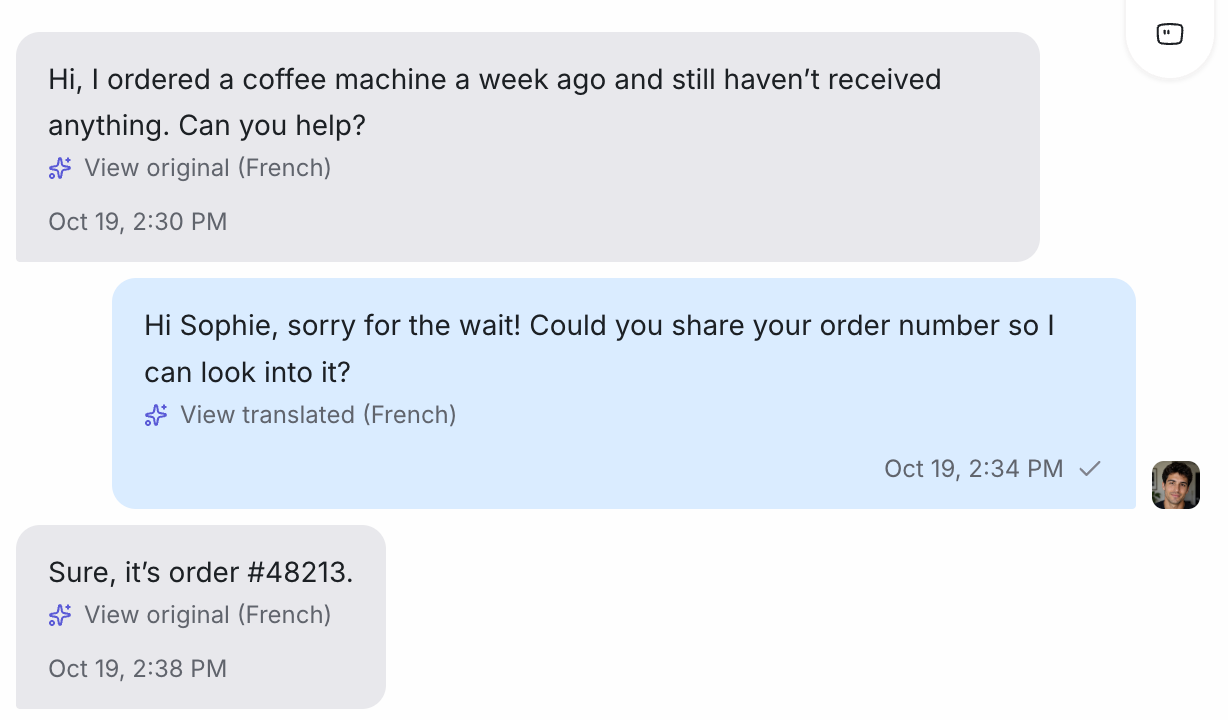
- Incoming messages are translated automatically: When a customer writes in another language, their message shows up already translated into your dashboard language. A small View original link under the message tells you which language it came from, so you always know a translation happened.
- Your replies are translated before delivery: Type your reply the way you normally would, in your own language. Chatwoot translates it into the customer's language before it's sent, so the customer gets a reply they can read straight away.
- View original / View translated: Click View original on a customer message to see their exact words, or View translated on your reply to see the version the customer received. Click the link again to switch back. Useful when you want to double-check a detail like an order number or a name.
- Translating… indicator: Translation usually takes a second or two. While it happens, the message text shimmers in purple with a Translating… line underneath, so you can see at a glance which messages are still on their way. Messages already in your language appear exactly as written, with nothing extra underneath.
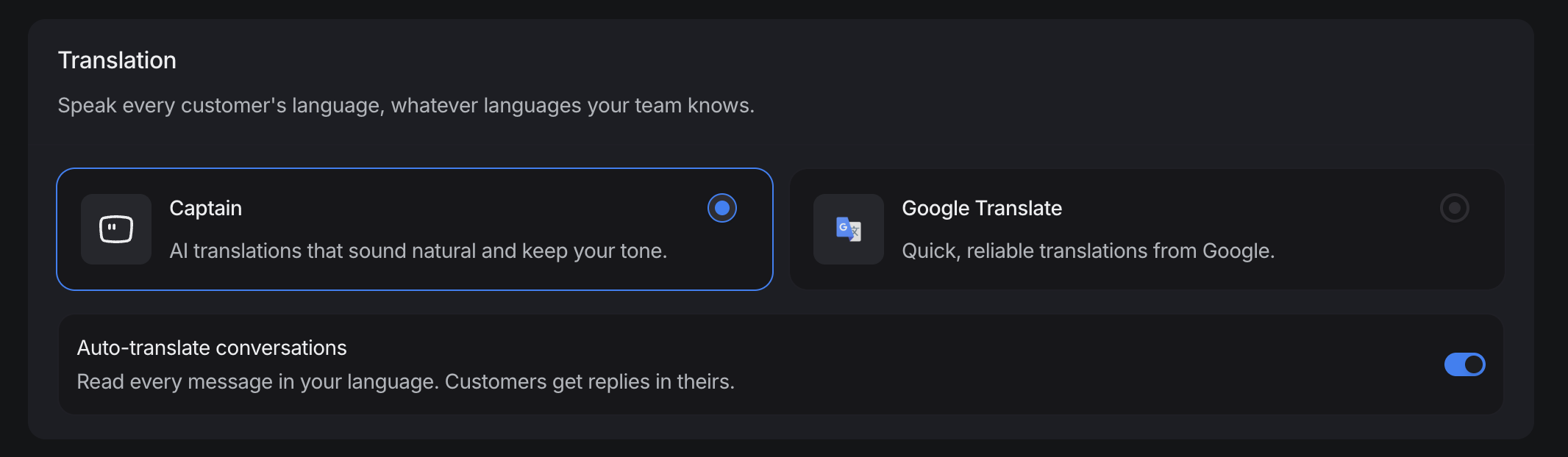
- Choose your translation service: Pick Captain for natural-sounding AI translations that keep your tone, or Google Translate for quick, reliable translations from Google. You can switch between them at any time in settings.
How to turn it on
An administrator goes to Settings → Conversation Workflows → Translation, picks a service, and switches on Auto-translate conversations.
Available on paid plans. Learn more in How to use Auto-translate in conversations.