

Discover
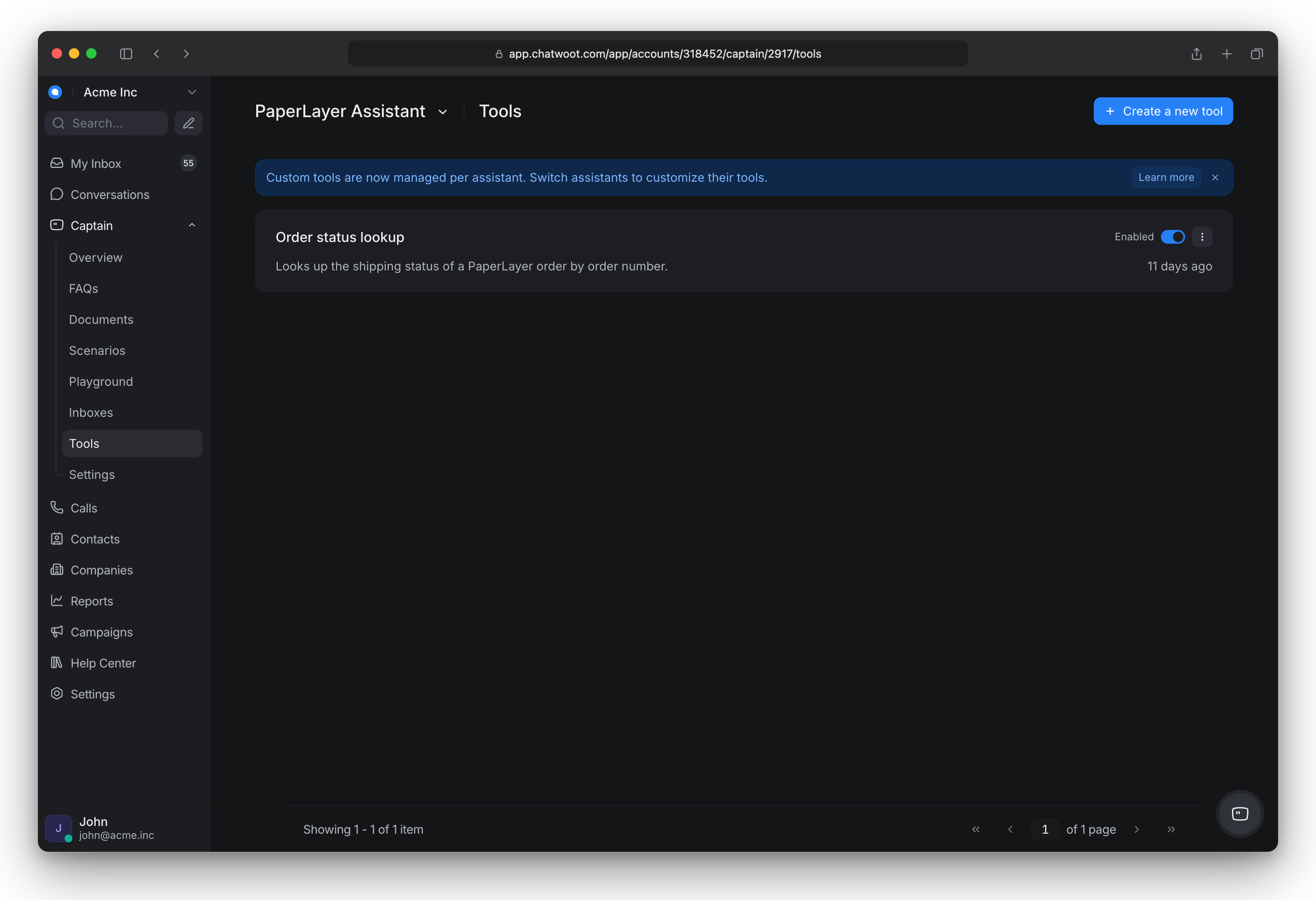
Custom tools let the assistant call your own systems during a conversation, for example to check an order, a warranty or a booking, instead of handing off.
Plan & access: Business or Enterprise (Pricing & Plans). On Startups, Tools usually shows Upgrade to use tools with Captain. Each assistant has its own list of tools. Administrators create tools, and only administrators can see the saved credentials. Self-hosted: the Super Admin turns on Custom Tools for the account.
Set up & try
Before you start
-
An HTTPS endpoint on a public hostname. Chatwoot blocks plain HTTP, IP addresses, localhost, private networks and .local addresses.
-
The endpoint must accept the connection within 2 seconds and answer within 20 seconds, with a response of 1 MB or less.
-
Its credentials, if it needs any.
Create a tool
-
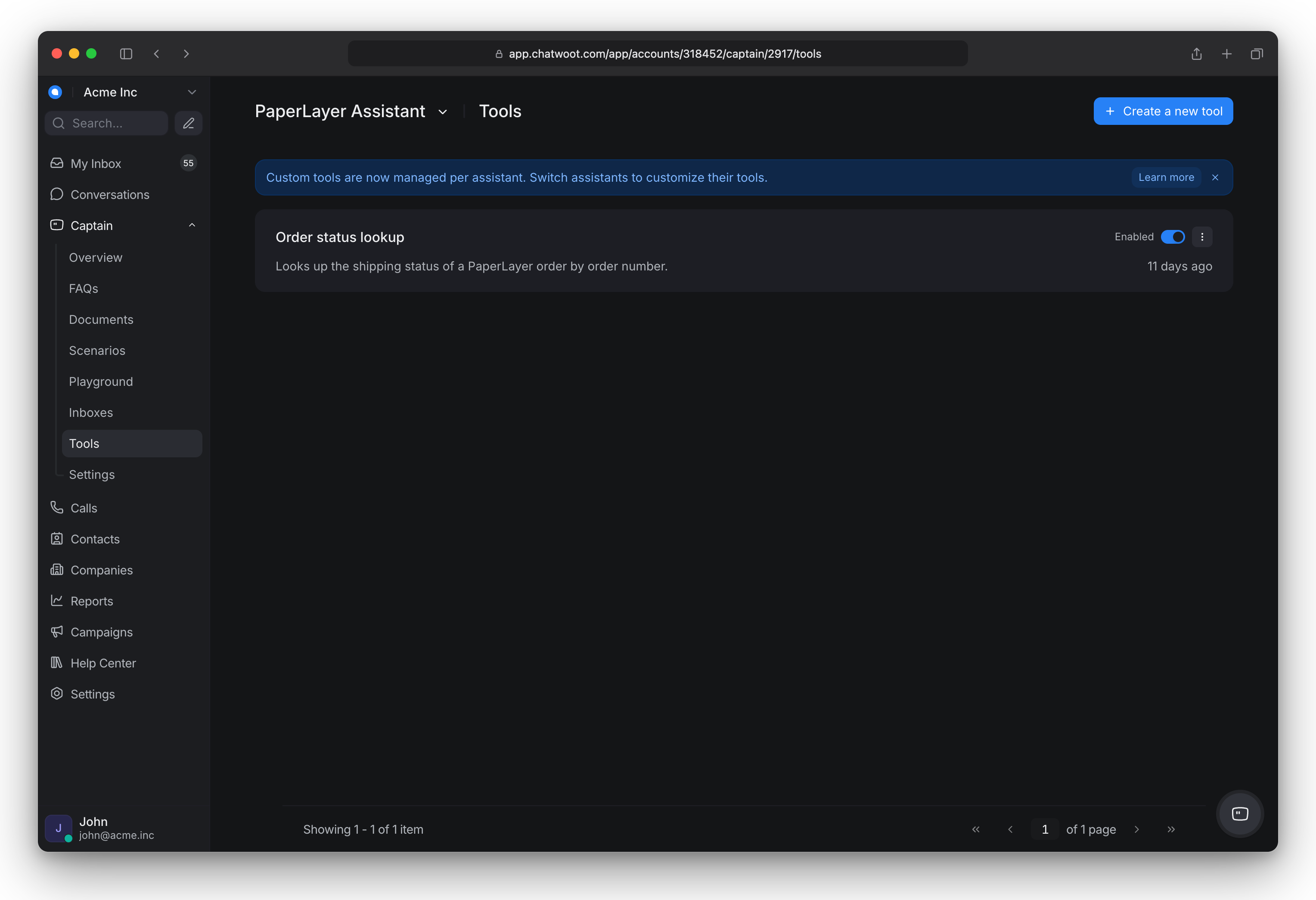
Go to Captain > Tools and click Create a new tool. First use the assistant switcher at the top to choose the assistant the tool is for. The form opens in a side panel.
-
Fill in:
-
Tool Name: short, for example "Order Lookup" (55 characters or fewer).
-
Description: when the assistant should use it, written like a briefing for a new agent. This decides whether the assistant picks the tool.
-
Method: GET to read data; POST, PUT or PATCH to send or change data; DELETE to remove something.
-
Endpoint URL: use
{{ parameter_name }}for values the assistant fills in, for examplehttps://api.example.com/orders/``{{ order_id }}. -
Authentication Type: None, Bearer Token, Basic Auth, or API Key (with Header Name and Header Value). Use this for credentials.
-
Headers: click Add Header for fixed headers your API needs on every call, such as an API version or tenant ID (up to 16). Values are sent exactly as typed. Chatwoot sets Authorization, Host, Content-Length, Content-Type and any header starting with X-Chatwoot itself, so you cannot add those.
-
Parameters: click Add Parameter for each value the assistant should get from the customer. Give a name, type, description, and mark Required if needed.
-
Add verified email: adds a parameter. Chatwoot puts the email that the customer verified with a one-time code in this parameter. In customer conversations, Captain cannot see or change it. Use this parameter when your API finds the customer by email, for example
https://api.example.com/orders?email={{ email }}. A tool can have one verified email parameter. -
Require email verification: Captain can use the tool only after the customer verifies their email with a one-time code. If the tool has a verified email parameter, this setting is always on.
-
Request Body Template (Optional): for POST, PUT or PATCH. This and the response template are under Templates. The request template is a JSON body. It supports Liquid, for example
{{ order_id }}for a parameter. -
Response Template (Optional): pick out the fields the assistant needs, for example
Order {{ response.order_id }} status: {{ response.status }}. Read the API reply throughresponse, for example{{ response.status }}. Leave the template blank to send Captain the raw JSON.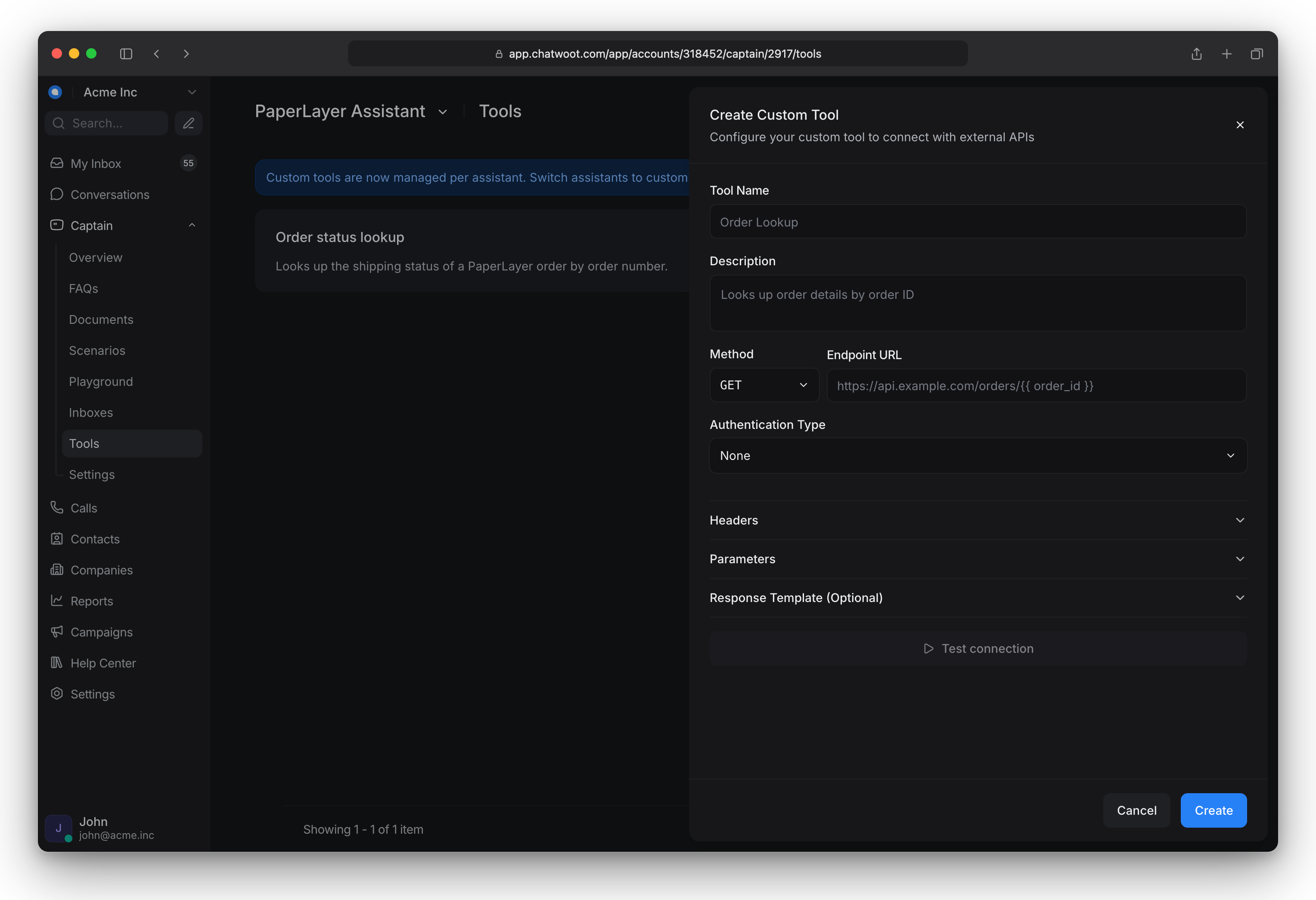
-
-
Click Test connection, then Create.
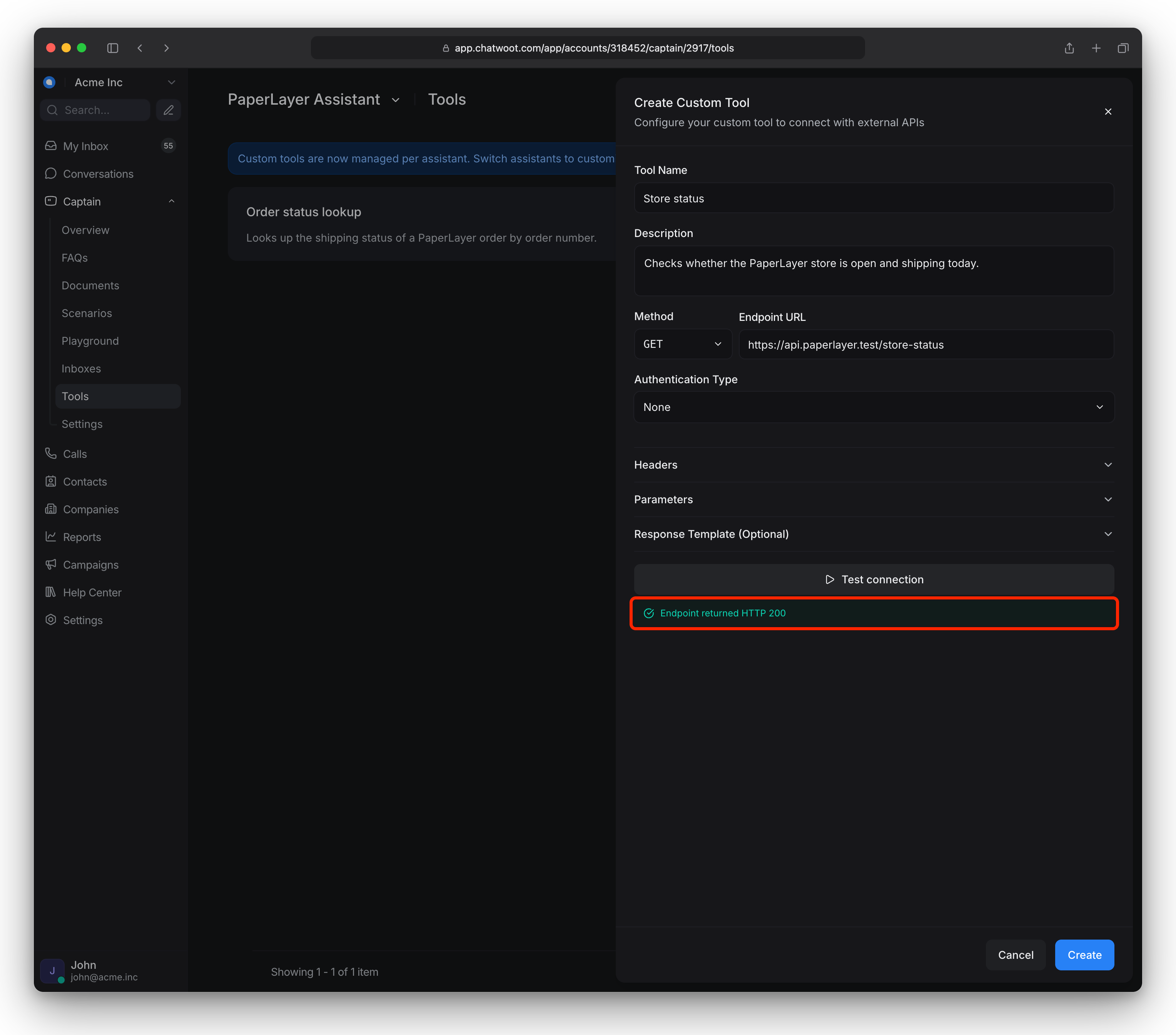
Test connection works only for endpoints without templates or a request body. For others, test in the Playground. A green result means your endpoint returned a 2xx status: it is reachable and accepted the credentials.
Test it
Ask a question in the Playground that needs the tool, for example "Where is order 1234?". Check the reply uses real data.
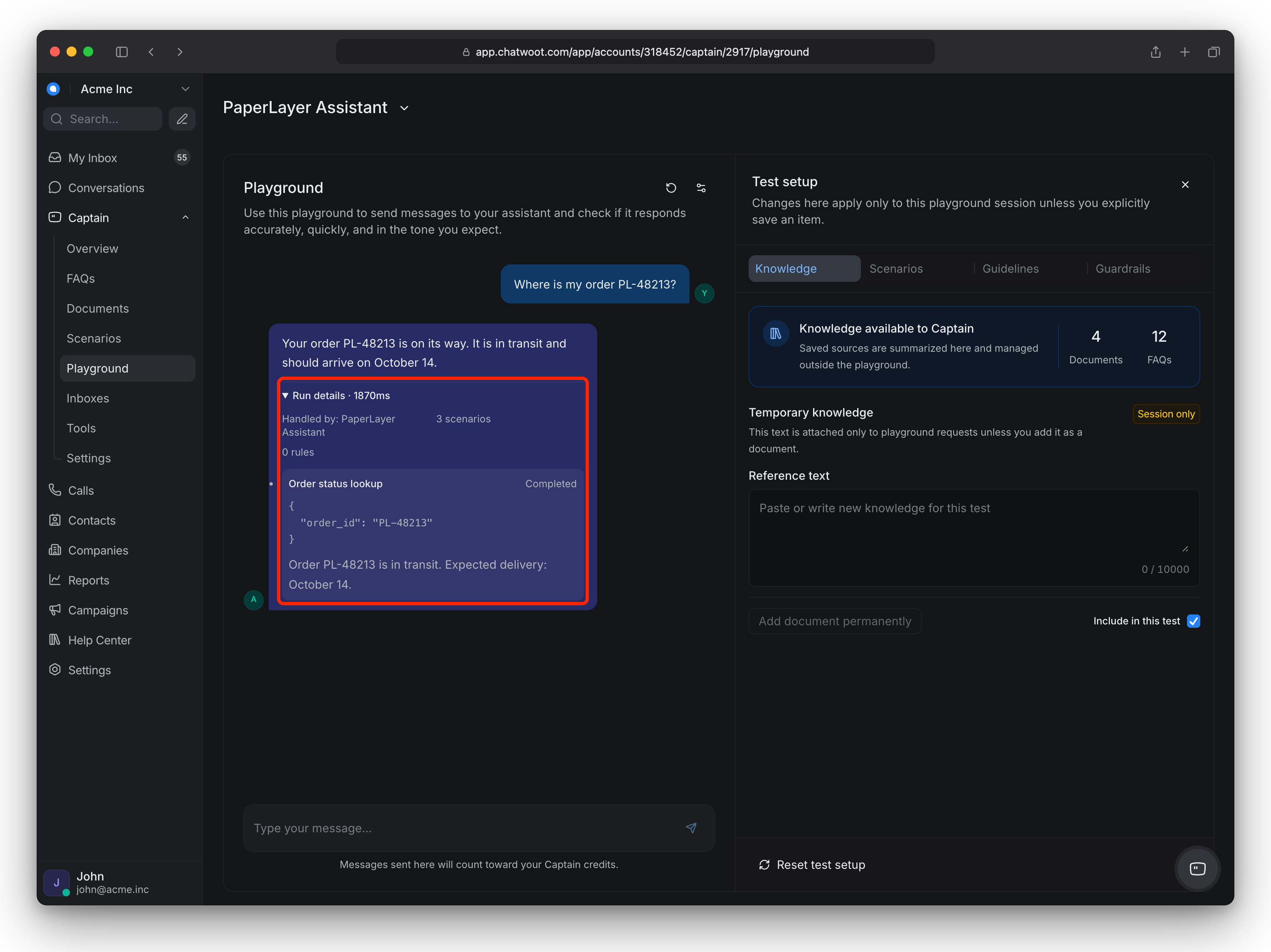
Protect customer data
A customer can type any email into the widget or the pre-chat form. Some tools return or change the data of one customer, such as orders, invoices or bookings. Turn on email verification for these tools.
When Captain calls one of these tools, it asks the customer for their email. Chatwoot sends a 6-digit code to that email, and the customer types it in the conversation. The tool runs only after Chatwoot checks that the code is correct.
-
A verification applies to one conversation only. It lasts up to 1 hour, or up to 3 hours in email conversations. A new conversation starts without verification.
-
A code expires after 30 minutes. The customer can try a code 5 times. Chatwoot sends a customer a maximum of 5 codes in one hour.
-
Require email verification does not control which email the tool sends. If your API gets the email from a normal parameter, Captain can send any email. To make the tool send only the verified email, use Add verified email.
-
Chatwoot can find signs that a tool uses customer data. If it finds them and the tool has no email verification, Chatwoot shows Save without email verification? before it saves. Click Go back or Save anyway.
-
In the Playground and in reply suggestions, the user is a team member. Captain fills the verified email parameter. The result tells you if Chatwoot verified that email.
-
On installed toolsets, administrators can turn Require email verification on or off.
Get value
-
Custom tools work best for lookups with clear inputs, such as an order status, a booking or a record by ID.
-
Each assistant can have up to 50 tools. Keep the list short anyway: with many tools the assistant is more likely to pick the wrong one.
-
Adding, editing, turning off or deleting a tool changes it only for the assistant you are viewing. Tools that existed before tools became per-assistant were copied to every assistant, so check each one.
-
Running several assistants? Give each only the tools it needs.
-
Turn a tool off with its toggle instead of deleting it. If a scenario uses it, Chatwoot warns you first. See Set Captain's guardrails, guidelines and scenarios.
-
Chatwoot sends headers with each request. The headers tell your system the account, conversation, contact, assistant and inbox.
-
X-Chatwoot-Verified-Emailcontains the email that the customer verified with a one-time code. If the customer did not verify, Chatwoot does not send this header. -
X-Chatwoot-Contact-Emailcontains the email on the contact record. Anyone can type this email. Do not use it to return private data. -
X-Chatwoot-Contact-Inbox-Verifiedistruewhen identity validation (HMAC) verified the contact. This header does not verify the email.
If your system returns private data, check
X-Chatwoot-Verified-Email, or turn on email verification for the tool. See How to enable identity validation in Chatwoot?. -
-
If your API returns text written by customers, return only the structured fields you need. Captain reads the reply as-is, so free text can contain instructions it might follow.
Troubleshoot
| Symptom | Likely cause | What to do |
|---|---|---|
| Connection failed | Endpoint unreachable, not HTTPS, or wrong credentials | Check the URL and credentials; make sure it is public HTTPS |
| Connection failed with 401 | The credentials are wrong | Check Authentication Type and the credentials |
| Connection failed with 403 | Your API rejected the request | Test requests carry no contact headers, so an endpoint that needs them fails the test. Test in the Playground instead |
| Connection failed with 404 | Wrong URL path | Check the URL path |
| Connection failed with a timeout | Your API took longer than 20 seconds to reply, or 2 seconds to connect | Speed up the endpoint |
| URL rejected | IP address, localhost or private address | Use a public hostname |
| A header is rejected | It is a header Chatwoot sets itself, a duplicate, or its value has placeholders | Remove it, or move credentials to Authentication Type |
| A tool is missing on another assistant | Tools belong to one assistant | Switch to that assistant and create the tool there |
| Cannot add another tool | The assistant already has 50 tools | Delete tools it does not use |
| Assistant never uses the tool | Description is vague | Rewrite the Description to say exactly when to use it |
| Assistant uses the wrong tool | Too many tools or overlapping descriptions | Remove or disable tools; make descriptions distinct |
| Slow or no answer, then hand-off | Endpoint took over 20 seconds or returned over 1 MB | Speed up the endpoint; trim the response with a Response Template |
| Captain asks the customer for a code before it uses a tool | The tool requires email verification | This is correct. The customer types the code from their email |
| The customer does not get the code | The customer got 5 codes in the last hour, or the email is in spam | Tell the customer to look in spam, or to wait one hour |
X-Chatwoot-Verified-Email is missing |
The customer did not verify, or the verification expired | Turn on Require email verification. Captain then asks for a code first |
More causes: Troubleshoot Captain.